
Payment Gateway Explainer 3
Dear Employer.
Refer previous Explainers sent to all active employers, informing of the implementation of a Payment Gateway. These can be accessed on our website via this link.
Further to the launch of the new version of our Benefit Administration System eesi© 2.0, all returns submitted from 13 August 2025 will be redirected for payment through a Secure Payment Gateway, as the final step in the return submission process.
The process to complete payments on current returns or your older returns, is illustrated below for your information and convenience.
Paying for you current return
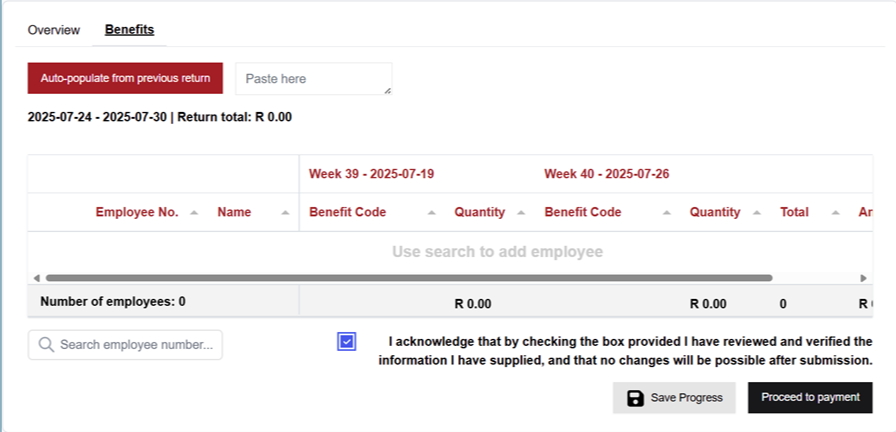
Step 1: Once you have loaded your information to your return and are satisfied that your information is correct, and have ticked the Acknowledgement box, you will select the black ‘Proceed to payment’ button.
Step 2: You will be directed to your Proforma tab where you will select the red ‘Pay Now’ button.
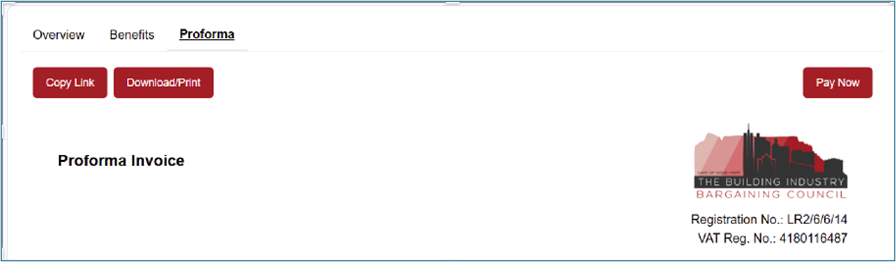
Note: If you are not the person making the payment, you can send a link to the person making the payments, by using the red ‘Copy Link’ button.
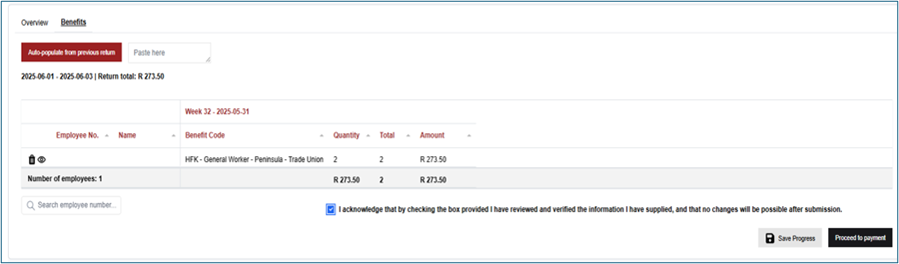
Note: If you have saved your return but have not yet submitted, you will not see the ‘Pro-Forma’ tab. In this case you will need to:
- Click on the ‘Benefits’ tab.
- Tick off the blue acknowledgement box; and
- Click on the black ‘Proceed to Payment’ button.
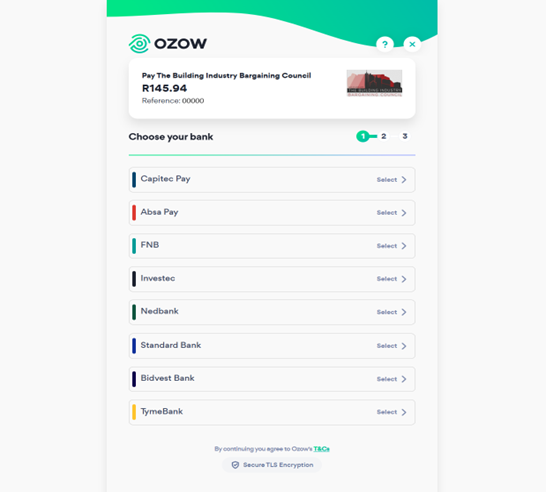
Step 3: You will be directed to the Secure Payment Gateway (hosted by OZOW). Your Reference information will be populated automatically as well as the full amount due including any outstanding interest. You will not be able to amend these details.
Once you select your bank, you will be redirected to your own banking platform and profile to complete the EFT transaction
Step 4: Follow the instruction and do not navigate away from the page, to allow for the information and funds to be transferred between the Payment Gateway, your bank and your eesi© 2.0 portal.
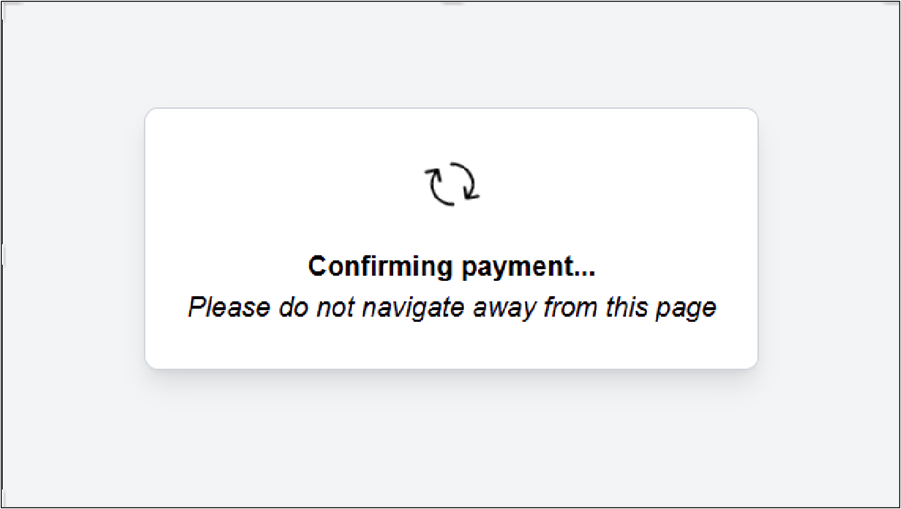
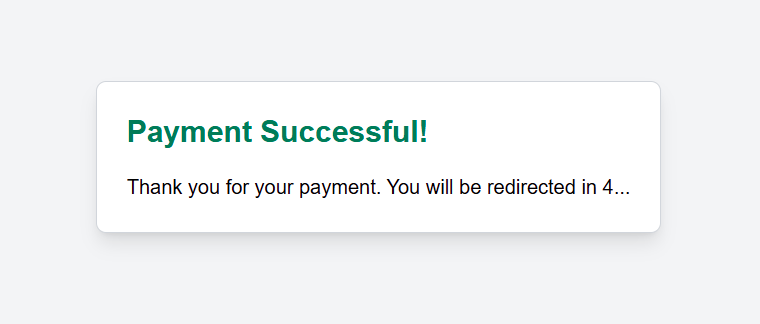
Step 5: Wait for the confirmation of successful payment and to be directed back to your portal view where you will be able to view and download the Tax Invoice.
On the Overview, you will note that your transaction has been processed, as reflected on your outstanding balance for that return.
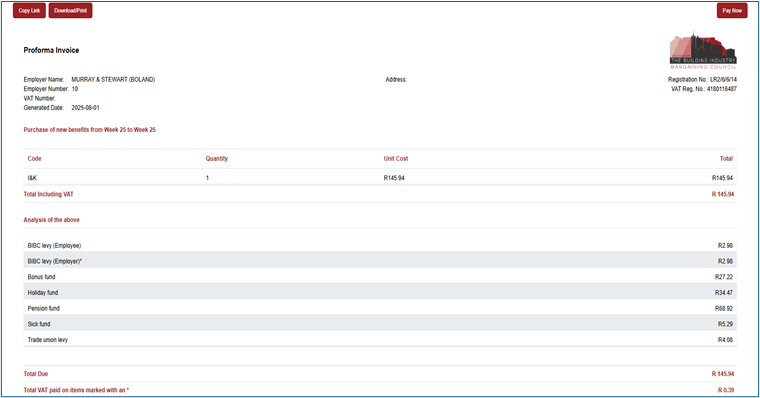
Paying for an older return
Click on the Pro-Forma Invoice for the return you are paying. Then follow the same process as you would when ‘Paying for your current return’ i.e. from steps 2 to 5, above.
Paying an outstanding amount on an older return
If there is an amount outstanding on a previous return due to short allocation or interest owed, this will be visible on the top and bottom of the Pro-Forma Invoice (See lines highlighted below).
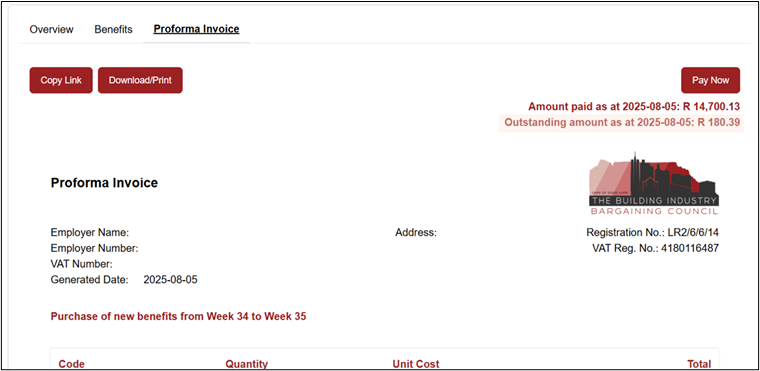
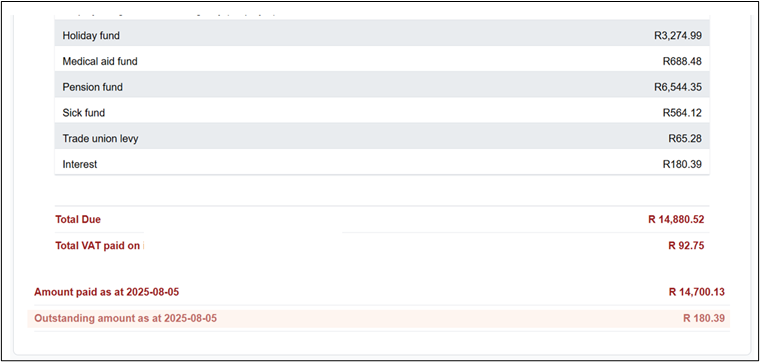
Click on the red Pay Now button at the top of the Pro-Forma Invoice to pay the amount outstanding for a previous return as per steps 2 to 5, above. You can also use the Copy Link option to send a link to another person for payment via the Secure Ozow Gateway.
Submitting a nil return

From the Benefits tab where you have entered your Zero quantities:
- Tick off the blue acknowledgement box; and
- Click on the black ‘Proceed to Payment’ button
This will open a Pro-Forma invoice with zero values. Click on the Submit button on the top of the Pro-Forma to process the Nil return, whereafter you will be directed back the grid.
Please direct ay queries to
You can download a PDF copy of this guideline here.